


When I started working with production workloads - database dumps, application logs, config files across environments - and realized pretty quickly that throwing files onto a server and hoping for the best is a disaster waiting to happen.
That's when S3 started making a lot more sense.
Amazon S3 (Simple Storage Service) isn't just a place to dump files. It's how organizations store everything from terabytes of database backups from anywhere in the world. Let me break down why it's built the way it is.
The Problem It Solves
Think about what an organization actually needs to store: database backups, application logs, reports, config files, and artifacts from every CI/CD run. You can't just buy a hard drive for that. And you definitely can't store it on your EC2 instance, expensive at scale, and a single point of failure.
S3 solves this by giving you object storage that's:
Infinitely scalable - no cap on how much you store
Globally accessible - every object gets an HTTPS endpoint, accessible from anywhere
Region-scoped, but globally reachable - you create the bucket in a region, but anyone with the right permissions can hit it from anywhere
That last point trips people up. S3 buckets live in a region - same as EC2. The difference is the content is accessible via HTTP/S globally. So pick a region close to your workload for performance, but don't confuse that with availability.
The 11 Nines
AWS guarantees 99.999999999% durability for objects stored in S3. That's 11 nines.
Here's what that actually means in practice: if you upload 1 billion objects and leave them there for 100 years, statistically you'd expect to lose one object. That's how S3 works under the hood.
When you upload an object, S3 automatically replicates it across multiple Availability Zones within your region. Each AZ has multiple data centers. If one goes down, your object still exists in the others. This replication is invisible to - it just happens.
Reference: Data protection in Amazon S3
Storage Classes
S3 has multiple storage classes, and the right choice depends on how often you access the data and how fast you need it back. Here's the mental model:
| Requirement | Class |
|---|---|
| Frequent access, low latency | S3 Standard |
| Infrequent access, still fast | S3 Standard-IA |
| Rarely accessed, slow retrival accepted | S3 Glacier |
| Almost never accessed, 12-48hr retrieval accepted | S3 Glacier Deep Archive |
| Access patterns are unpredictable | S3 Intelligent-Tiering |
In practice, you'll often put recent logs or artifacts in S3 Standard, then use lifecycle policies to move older versions to Glacier after 30 days. That's where the cost savings compound.
Reference: AWS Storage Classes
Versioning - S3 as a Safety Net
Versioning is one of those features that seems optional until the day arrives and you desperately need the previous copy.
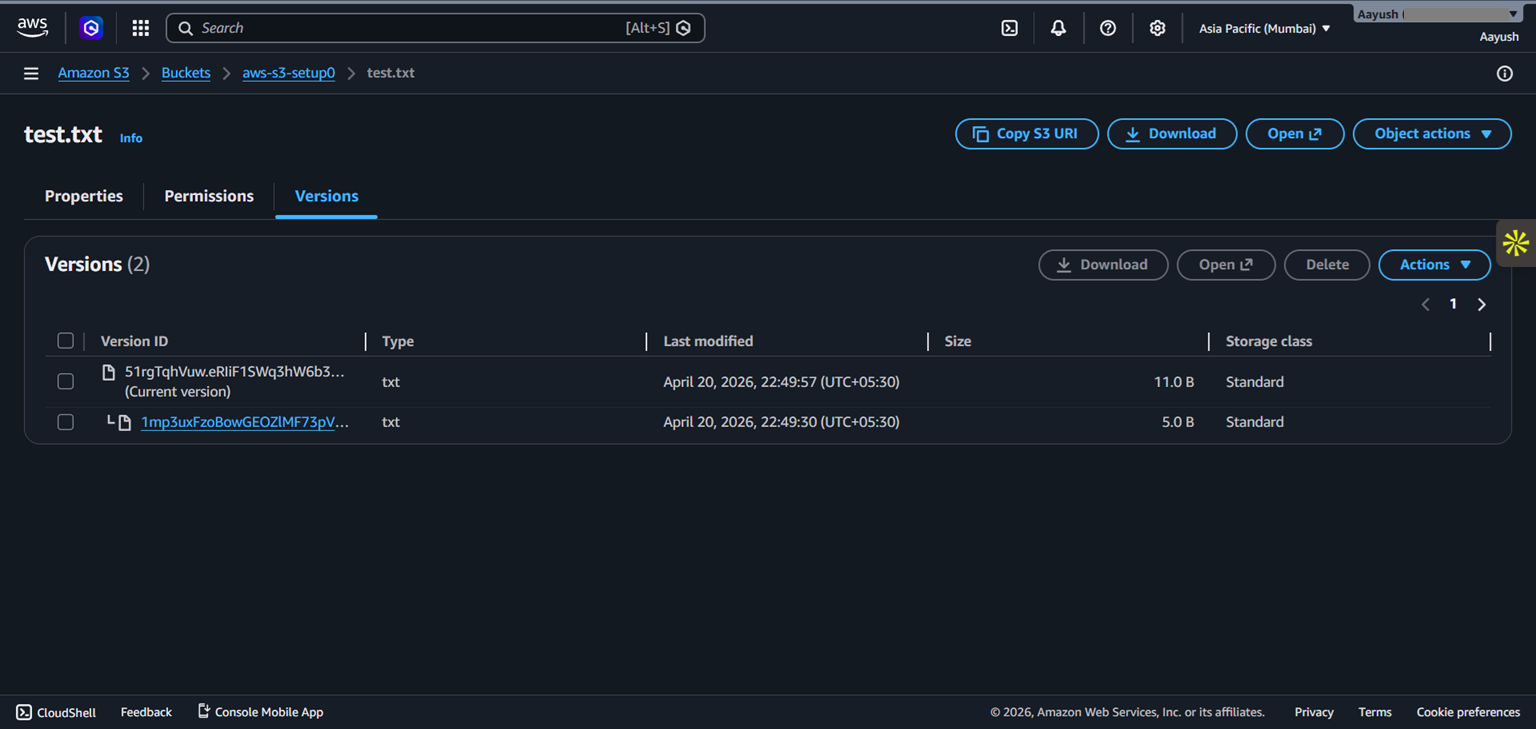
When you enable versioning on a bucket, every upload to the same key (filename) creates a new version instead of overwriting. You can retrieve, restore, or delete specific versions independently.
By default, versioning is disabled and has to be enabled explicitly.
Now upload the same file twice - go to the Objects tab, toggle Show versions, and you'll see both copies. Each has a unique Version ID assigned by S3.
You may have S3FullAccess in their IAM policies. That means they can access every bucket in the account - including yours with sensitive database dumps. IAM permissions are account-wide. Bucket policies let you override that at the bucket level.
Static Website Hosting
S3 can serve a static website directly. No EC2, no web server, no Nginx. For a frontend that's just HTML/CSS/JS, this is one of the cheapest hosting options you'll find.
Steps:
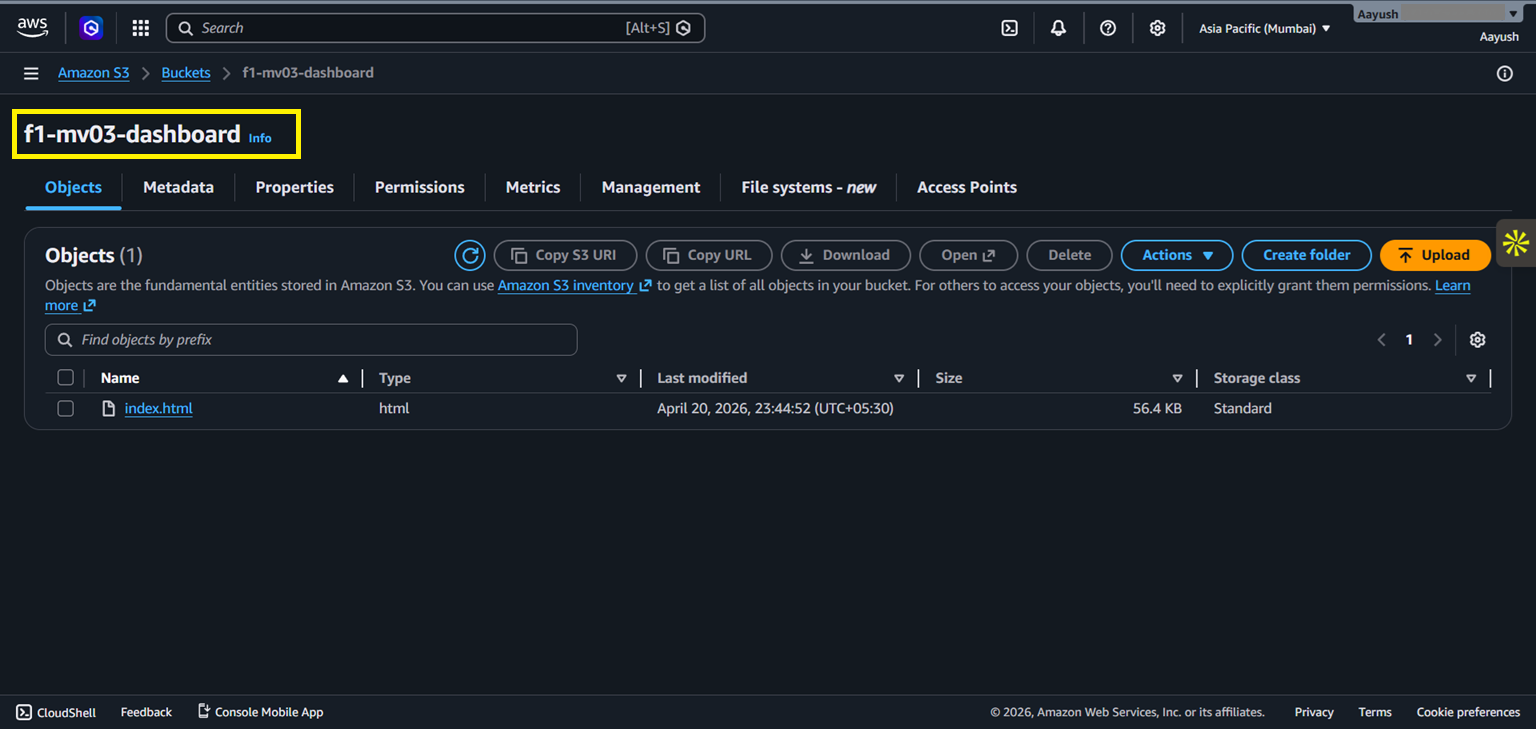
Create a bucket with a unique name (S3 bucket names are globally unique across all AWS accounts)
Upload your
index.htmlGo to Properties -> Static website hosting -> Enable it, set
index.htmlas the index documentGo to Permissions -> Block Public Access -> Uncheck all (you're intentionally making this public)
Add this bucket policy to allow public reads:
{
  "Version": "2012-10-17",
  "Statement": [
    {
      "Sid": "PublicReadGetObject",
      "Effect": "Allow",
      "Principal": "*",
      "Action": "s3:GetObject",
      "Resource": "arn:aws:s3:::your-bucket-name/*"
    }
  ]
}
- Go back to Properties -> Static website hosting - copy the endpoint URL and open it in a browser
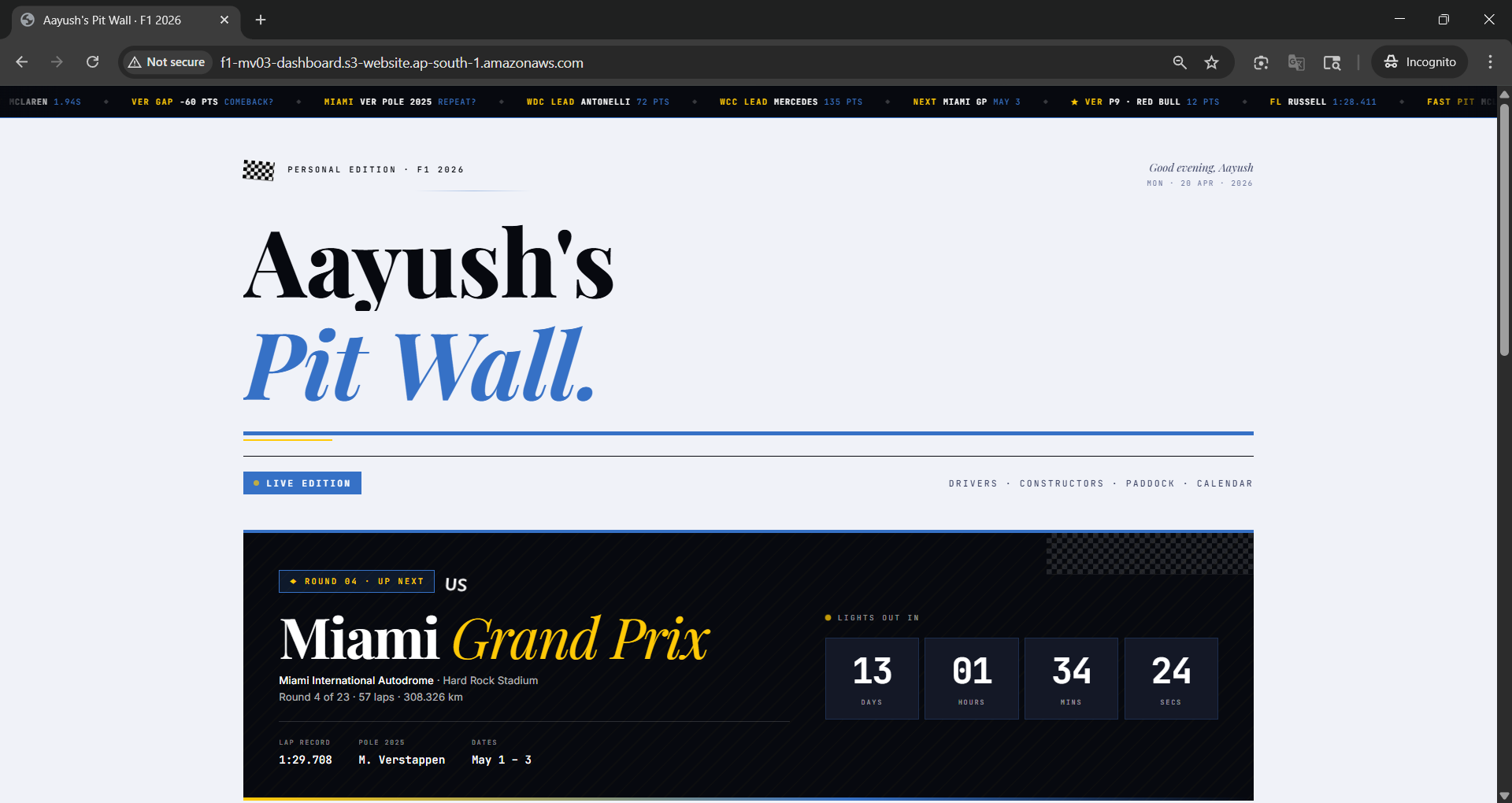
This only works for static sites - no server-side code, no databases
Things Worth Remembering
S3 is object storage - anything you upload is an "object," not a traditional file in a filesystem.
Bucket names are globally unique across all AWS accounts, not just yours.
Default encryption is now enabled by default on all new buckets (AWS added this relatively recently).
Enable access logging on sensitive buckets - it records every request with the IAM identity, IP, and action, which is invaluable for auditing.
Use tags religiously in multi-project environments - filtering resources by
Env: prod
About the author
- DevOps engineer focused on building, automating, and securing cloud infrastructure. I work with AWS, Docker, Terraform, and CI/CD pipelines to ship scalable and reliable systems. I write about cloud services & architecture, deployment strategies, and real-world DevOps practices.
Comments
Join the discussionNo comments yet. Be the first to comment.
AWS
Breaking down AWS from the ground up - IAM, EC2, VPC, S3, and beyond. Real concepts, real depth, no fluff.


